Playing Minecraft with friends on your own server is the best way to build long-running worlds together — but getting a server online for the first time can feel intimidating. Do you run it on your PC? Pay for hosting? Use Minecraft Realms? The right answer depends on how many friends you have, whether you want mods, and how much you want to spend.
This 2026 guide walks you through the three realistic options for hosting a Minecraft server, shows you exactly how to set each one up, and helps you pick the one that fits your group. All instructions target Minecraft Java Edition 1.21.5, with notes on Bedrock Edition where it matters.
Three Ways to Host a Minecraft Server
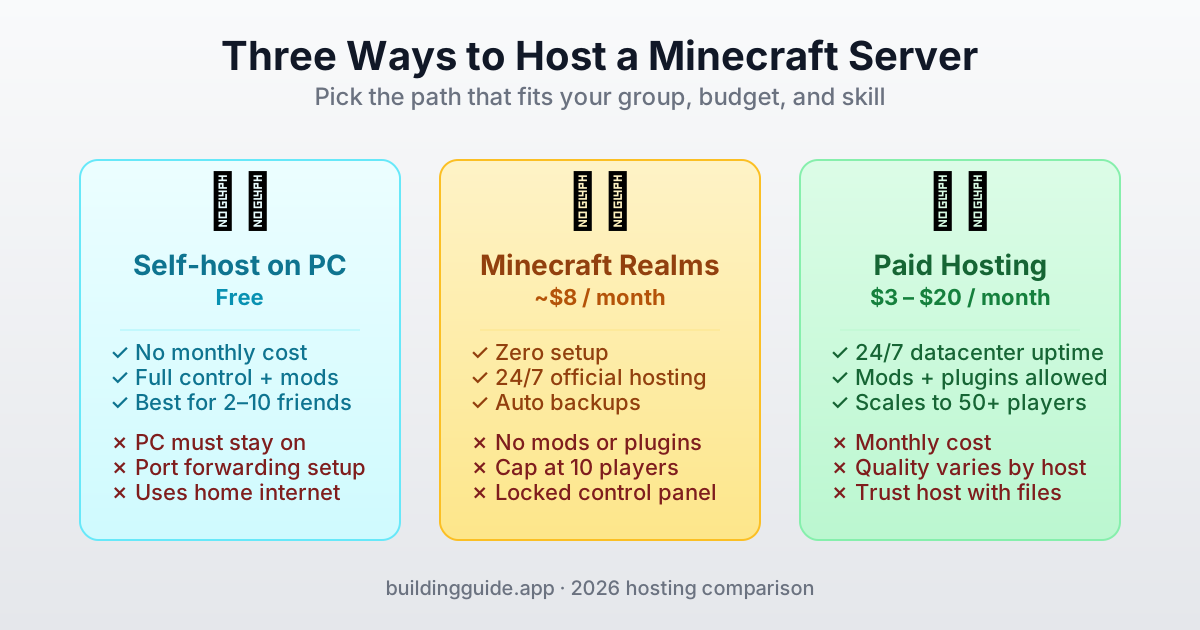
Before diving into steps, here is the short version of each path so you can jump straight to the one that fits you:
- Self-host on your PC — free, full control, but your PC has to be online whenever friends want to play.
- Minecraft Realms — official Mojang service, easy setup, $8/month for up to 10 players. No mods and no plugins.
- Paid third-party hosting — rented server that runs 24/7 in a datacenter. Supports mods and plugins. Around $3–$20/month depending on RAM and player count.
Option 1: Host on Your Own PC (Free)
Running the official Minecraft server software on your own computer is the cheapest way to host, and it works fine for small groups. The downside is that the server only runs while your PC is on — close your laptop and everyone gets kicked. You also need to deal with port forwarding if friends are outside your home network.
What You'll Need
- A PC running Windows, macOS, or Linux with at least 4 GB of free RAM just for the server (8 GB recommended for 5+ players).
- Java 21 installed. Minecraft 1.21.x requires Java 21 — older versions of Java will not start the server.
- A wired ethernet connection for the host PC is strongly recommended. Wi-Fi will work but lag more.
- Admin access to your router (for port forwarding) or a free tunnel service like Playit.gg.
Step 1: Download the Official Server
- Go to minecraft.net/download/server.
- Download the latest
server.jarfile for your Minecraft version. - Create an empty folder on your PC (for example
C:\MinecraftServeror~/minecraft-server). Keeping the server in its own folder is important — the first launch creates several files. - Move
server.jarinto that folder.
Step 2: First Launch & Accept the EULA
Open a terminal (Command Prompt on Windows, Terminal on macOS/Linux), cd into your server folder, and run:
java -Xms2G -Xmx4G -jar server.jar noguiThe -Xms and -Xmx flags set the minimum and maximum RAM the server can use. Bump -Xmx up if you have more RAM (for example -Xmx8G). The first run will exit immediately and create a file called eula.txt.
Open eula.txt in a text editor and change eula=false to eula=true. Save the file, then run the same command again. This time the server will generate a world and start listening for connections.
start.bat on Windows or start.sh on macOS/Linux) with the java command so you don't have to retype it every time.Step 3: Configure server.properties
After the first full launch you'll see a server.properties file. This is where you tune the server. Here are the settings most people actually change:
# server.properties (key settings)
motd=Our building SMP
gamemode=survival
difficulty=normal
max-players=10
view-distance=10
simulation-distance=8
white-list=false
online-mode=true
pvp=true
spawn-protection=16
enable-command-block=false
level-seed=
level-type=minecraft\:normal- motd — the message players see in their server list.
- max-players — cap how many can join. Match this to your RAM.
- view-distance — chunks rendered around each player. Dropping this from the default 10 to 8 can triple your server's headroom.
- white-list — set to
trueand then use/whitelist add <name>in-game to lock the server to friends only. - online-mode — leave this
true. It verifies players actually own Minecraft.
Step 4: Let Friends Outside Your Network Connect
By default, the server is only reachable from devices on your home Wi-Fi. To let friends across the internet join, you have two options.
Option A: Port Forwarding on Your Router (Free, Permanent)
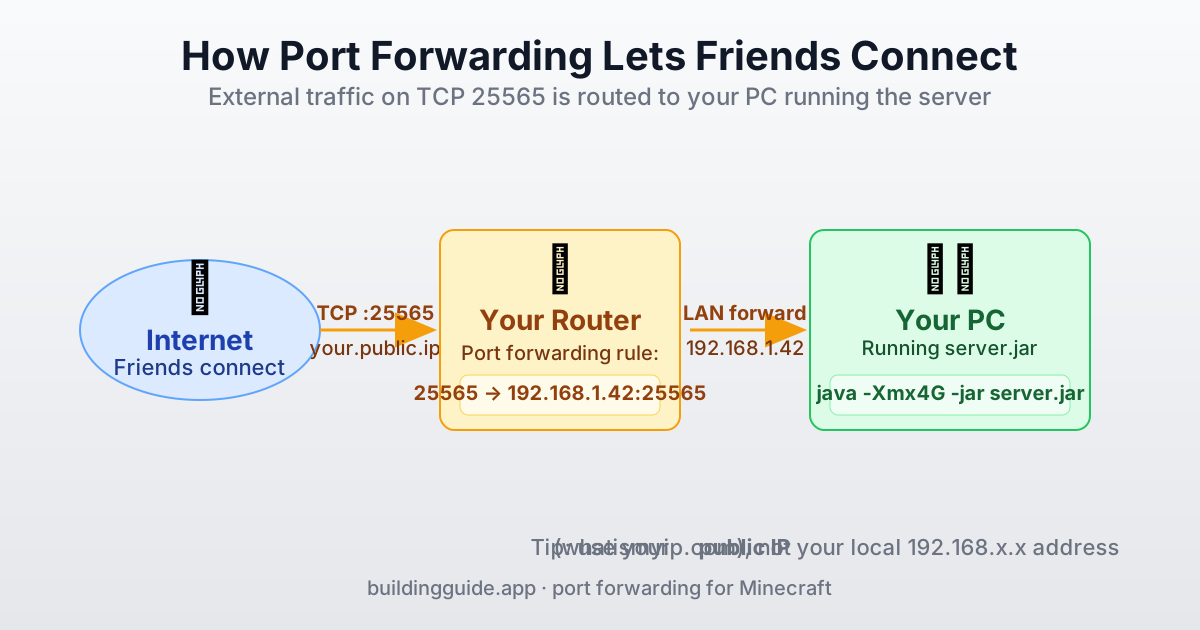
- Log in to your router's admin page (usually
192.168.1.1or192.168.0.1— check the sticker on the router). - Find the Port Forwarding or Virtual Server section.
- Create a new rule: External port 25565 → Internal port 25565, TCP, pointing at your PC's local IP address.
- Save and restart the router if it asks.
- Find your public IP at whatismyip.com and share that with friends. They'll paste it as the server address in their Minecraft client.
Option B: A Free Tunnel Service (No Router Config)
If you can't access your router or your ISP uses CGNAT (common on mobile connections and some apartment fiber plans), port forwarding won't work. Use a tunnel service instead:
- Playit.gg — free, purpose-built for Minecraft, gives you a
yourname.joinmc.linkaddress friends can connect to. - ngrok — general-purpose TCP tunnel, free tier works for Minecraft, but your address changes each time you restart.
Tunnels are slower than direct port forwarding (you'll see 30–80 ms of extra latency) but they work from anywhere without touching network settings.
Self-Hosting: Pros and Cons
| Pros | Cons |
|---|---|
| Free — no monthly cost. | Your PC has to be on for anyone to play. |
| Full control — install any plugins, mods, or Java flags. | Requires some networking knowledge (port forwarding, firewall). |
| World files live on your machine — easy backups. | Performance depends on your home internet and hardware. |
| Good for 2–10 players on decent hardware. | Leaving the server public is a small security responsibility. |
Option 2: Minecraft Realms (Easy, Official)
Minecraft Realms is Mojang's own hosting service. It runs 24/7 in their datacenter, supports up to 10 simultaneous players, and takes about five minutes to set up. It's the easiest path if you don't care about mods or plugins.
How to Start a Realm
- Open Minecraft (Java or Bedrock).
- Click Minecraft Realms from the main menu.
- Choose a subscription plan (about $8/month for 10 players on Java).
- Name your realm, pick a seed or upload an existing world, and you're done.
- Use the Invite button to add friends by username — they join by clicking Accept in their own Realms menu.
Realms: Pros and Cons
| Pros | Cons |
|---|---|
| Zero setup — no port forwarding, no files to manage. | No mods, plugins, or datapacks (Java Realms) beyond the official marketplace. |
| Runs 24/7 so friends can play when you're offline. | Hard cap at 10 simultaneous players (Java) or varies on Bedrock. |
| Worlds are backed up automatically. | More expensive than some budget hosts for the same player count. |
| Integrated directly into the Minecraft client. | You can't tweak server.properties or install performance plugins like Paper. |
Option 3: Paid Third-Party Hosting
A paid host rents you a slice of a server in a datacenter. You get a control panel to start/stop the server, install plugins, upload your own world, and configure everything you could configure on a self-hosted server — except you don't have to leave your PC on, and the connection speed is usually excellent.
How It Works
You pick a plan based on RAM and player count, the host spins up a server with your chosen Minecraft version, and you get a web dashboard (usually Pterodactyl, Multicraft, or the host's own panel). From there you can drop plugins into /plugins, edit server.properties, and run console commands. The server keeps running even when you close the browser.
What to Look for in a Host
- RAM per plan — aim for 1 GB per 5 players for vanilla, or 2–4 GB per 5 players if you want mods.
- CPU clock speed — Minecraft is single-threaded, so a fast CPU (3.5 GHz+) matters more than many cores.
- SSD or NVMe storage — avoids chunk-load stutters. HDD-backed plans are cheaper but laggy.
- DDoS protection — table stakes in 2026. Any reputable host advertises it.
- Location — pick a datacenter near most of your players for the lowest ping.
- No-commit monthly billing — lets you cancel if the host doesn't work out.
Paid Hosting: Pros and Cons
| Pros | Cons |
|---|---|
| 24/7 uptime without leaving your PC on. | Monthly cost — typically $3–$20 depending on RAM and player count. |
| Supports any plugin or mod your version allows. | Some cheap hosts overload their hardware. Read reviews. |
| Fast, datacenter-grade connection. | You have to trust the host with your world files. |
| Scales up easily — bump RAM as your group grows. | Moving hosts means downloading and re-uploading your world. |
Which Option Is Right for You?
The decision usually comes down to three questions:
- Does your group want mods or plugins? If yes, rule out Realms — go self-hosted or paid.
- Does the server need to be online 24/7? If yes, rule out self-hosting unless you have a spare PC that stays on.
- How much are you willing to spend? Free = self-host. $3–$20/month = paid. $8/month and you hate setup = Realms.
world/ folder.Recommended Specs by Player Count
Whether you self-host or rent, here's a rough RAM guide for a vanilla Minecraft server. Double these numbers for modded servers (Forge, Fabric, or Paper with heavy plugins).
| Players | RAM (vanilla) | RAM (modded) |
|---|---|---|
| 1–3 | 2 GB | 4 GB |
| 4–8 | 4 GB | 6–8 GB |
| 9–15 | 6 GB | 8–10 GB |
| 16–25 | 8 GB | 12–16 GB |
| 25+ | 10 GB+ | 16 GB+ |
Troubleshooting Common Problems
"Can't connect to server"
Nine times out of ten this is a networking problem. Check that: the server is actually running (you see chat in the console), you forwarded TCP port 25565 not UDP, the IP you shared is your public IP (not 192.168.x.x), your firewall isn't blocking Java, and the Minecraft version in the client matches the version in the server console.
"Server lags or crashes"
Lag usually means you don't have enough RAM or your view-distance is too high for the hardware. Lower view-distance to 8 and simulation-distance to 6 in server.properties. For bigger gains, switch from vanilla to Paper — same Minecraft, far better performance. Watch TPS with /tps (20.0 is perfect; below 18 means you're lagging).
"You need to agree to the EULA" loop
Open eula.txt in the server folder, change eula=false to eula=true, save, and relaunch. Make sure the file has the exact text with no typos.
"Unsupported class file major version"
You're running the server with an older Java version. Minecraft 1.21.x requires Java 21. Download it from adoptium.net and run java --version to verify before launching.
What You'll Build on Your New Server
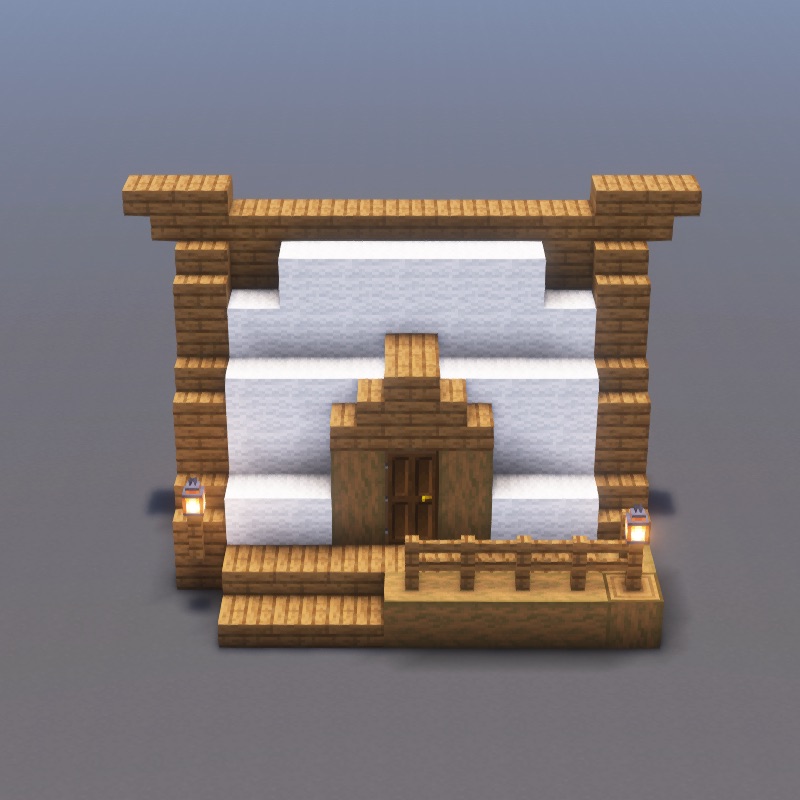
The whole point of a shared server is to build something together. Here are a few starter projects from our tutorial library that a small group can knock out in a single evening:
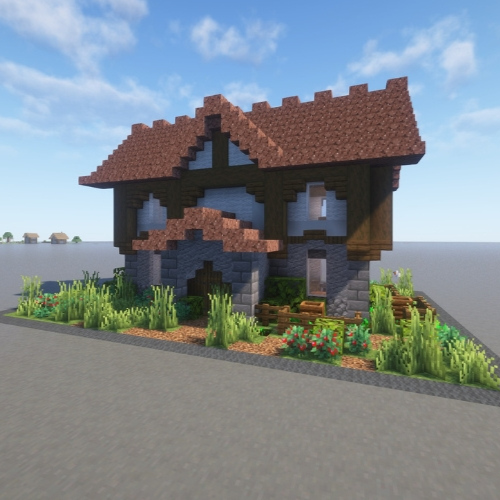
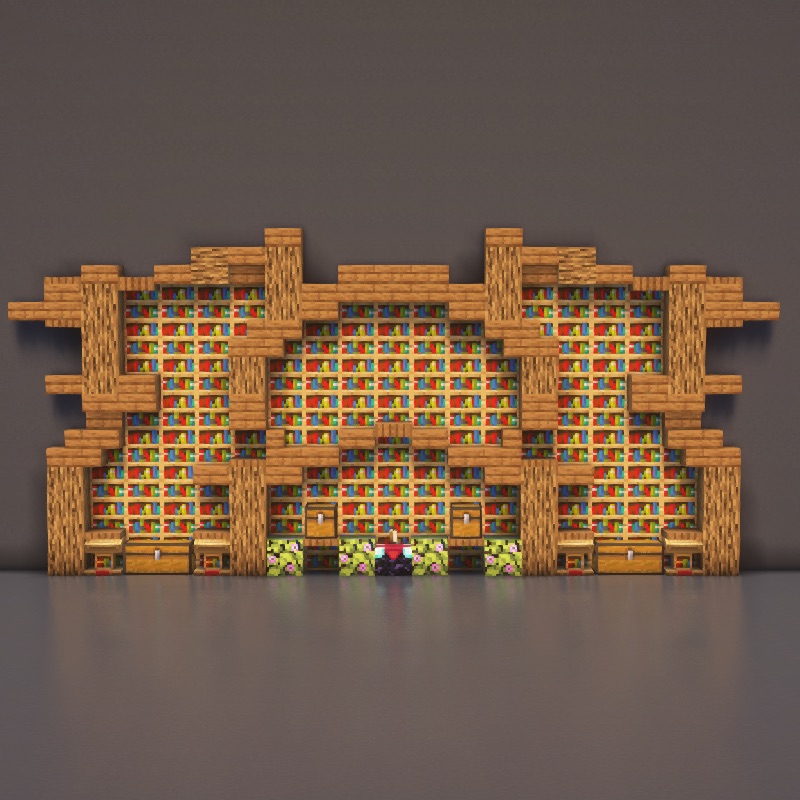
Once your server is online and your friends can join, the fun part begins: picking a theme, installing plugins, and deciding what to build. If your group leans toward creative building, the next obvious moves are installing building plugins like WorldEdit, setting up Litematica for blueprint building, and turning your server into a proper SMP.