There are more ways to play Minecraft with friends than ever in 2026, and picking the right one depends on how many of you there are, what platform each person is on, and how much setup you're willing to do. This guide walks through the five realistic options — from zero-setup LAN to a full cross-play Java/Bedrock server — and shows you exactly when to pick each.
All instructions target Minecraft 1.21.5 for both Java and Bedrock editions.
Quick Comparison
| Method | Players | Cost | Difficulty | Best for |
|---|---|---|---|---|
| LAN (same Wi-Fi) | 2–8 | Free | Easy | House hangouts, same network |
| Minecraft Realms | 10 (Java) / 10 (Bedrock) | ~$8/mo | Easy | Casual group, no setup |
| Your own server | 2–50+ | Free–$20/mo | Medium | Mods, plugins, control |
| Public server | Unlimited | Free | Easy | Quick play, minigames |
| Bedrock in-game invite | 8 | Free* | Easy | Console players already online |
*Bedrock in-game invites require an Xbox Live / Game Pass / Nintendo Online subscription on consoles for online multiplayer.
Method 1: LAN (Same Wi-Fi Network)
If everyone is in the same house, LAN is the fastest way to start. No server software, no port forwarding, no accounts to configure. The host opens their single-player world to LAN and everyone else joins from the "Multiplayer" screen.
How to Set Up a LAN Game
- The host opens their single-player world (Java Edition).
- Press Esc → Open to LAN. Pick a gamemode and whether cheats are allowed. Click Start LAN World.
- Friends on the same Wi-Fi open Multiplayer. The host's world appears automatically in the server list.
- They click it and join. Done.
Bedrock Edition works the same way — host starts a world with "Multiplayer" enabled, and others see it under Friends → LAN.
LAN: Pros and Cons
- ✓ Zero setup. Works in under a minute.
- ✓ No cost, no accounts.
- ✗ Same network required. Doesn't work across the internet.
- ✗ Host must stay in-game. If they quit, everyone is kicked.
- ✗ Host's PC does all the work. 5+ players strains a laptop.
Method 2: Minecraft Realms
Realms is Mojang's official hosted server service. You pay ~$8/month and they run a server in their datacenter for your group of up to 10 players. It's the easiest "real server" option.
How to Start a Realm
- Open Minecraft (Java or Bedrock).
- Click Minecraft Realms on the main menu.
- Choose a plan (the 10-player plan is the only one on Java; Bedrock has 2 and 10 player options).
- Name your realm, pick a seed or upload a world.
- Use Members → Invite to add friends by username.
Method 3: Run Your Own Server
Running your own server gives you the most freedom: any player count, any plugins, any version. You can self-host on your PC (free) or pay a third-party host to run it 24/7 in a datacenter. This is the path we recommend for groups that want to build long-running SMPs with mods.
We have a full step-by-step guide on this: How to Host a Minecraft Server for Friends. The short version:
- Self-host: download
server.jar, run withjava -Xmx4G -jar server.jar nogui, share your public IP after port forwarding TCP 25565. - Paid host: pick a plan with enough RAM for your group (see our RAM requirements guide), upload your world, friends connect to the host's address.
Method 4: Public Servers
If you just want to play something with friends without setting anything up, pick a public server. These are third-party worlds with minigames, survival SMPs, or creative plots. You all connect to the same IP and find each other there.
How to Join a Public Server
- Main menu → Multiplayer → Add Server.
- Paste the server's address (e.g.
mc.hypixel.net). - Friends do the same. Once on the server, use in-game party commands to group up (most big servers support
/party invite <name>).
Public Servers: Pros and Cons
- ✓ Totally free. No subscription, no hosting cost.
- ✓ Always online. Jump in anytime.
- ✓ Minigames, PvP, builder plots, skyblock — whatever you want.
- ✗ No control over rules, world, or progression.
- ✗ Anti-cheat and queues can be strict. Big servers may have hundreds of players waiting.
Method 5: Bedrock In-Game Invite (Consoles & Mobile)
If you're on Bedrock Edition (mobile, Xbox, PlayStation, Nintendo Switch, or Windows 10/11), you can invite friends into your world directly without running anything yourself. Your host device does the hosting, but it uses Xbox Live / PSN / Nintendo accounts for discovery.
How to Invite Friends on Bedrock
- Add your friends' Microsoft accounts as Xbox friends (even on PlayStation/Switch, this works as the universal identity).
- Start your single-player world with Multiplayer enabled.
- Friends go to Friends tab on their main menu; they'll see your world listed.
- They click to join.
Java & Bedrock Cross-Play
Java and Bedrock Edition are different games that can't natively talk to each other. If your group has players on both (one person on PC with Java, another on PlayStation with Bedrock), you need a bridge. The most popular solution is the Geyser plugin — it runs on a Paper/Spigot Java server and lets Bedrock players connect to it as if it were a Bedrock server.
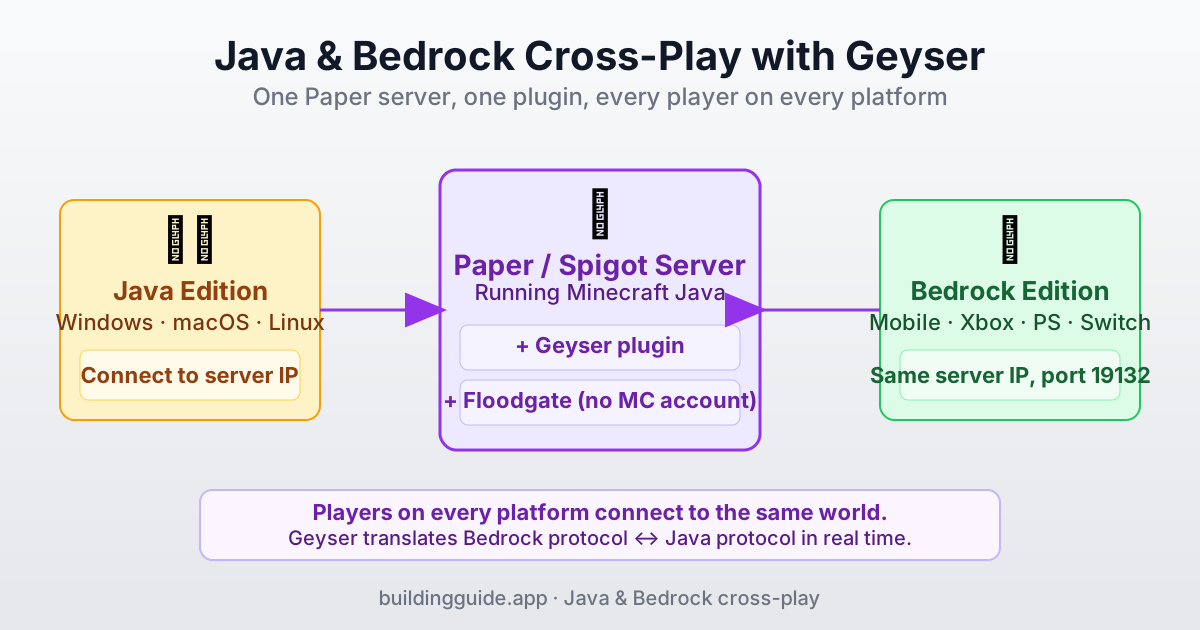
How to Enable Cross-Play
- Set up a Paper or Spigot server (follow our hosting guide, but use Paper instead of vanilla).
- Download the Geyser plugin from geysermc.org/download.
- Drop the
Geyser-Spigot.jarfile into your server's/pluginsfolder. - Optional but recommended: also install Floodgate to let Bedrock players join without a Java Minecraft account.
- Restart the server. Bedrock players connect to your server's IP on port 19132; Java players connect on port 25565.
Which Method Should You Pick?
- Everyone is in the same house? → LAN.
- Mixed Java and Bedrock players? → Your own server with Geyser.
- Want mods or plugins? → Your own server.
- Don't want to manage anything, ≤10 players? → Realms.
- Just want to jump in and play minigames? → Public server.
- All on Bedrock consoles? → In-game invite (free if you already have the subscription).
Troubleshooting
"LAN world doesn't show up for my friend"
Both devices need to be on the same network (same Wi-Fi name). Guest networks and some mesh systems isolate devices from each other — turn off guest mode or use the main SSID. Also check that network discovery is enabled in the OS firewall.
"Friend can't connect to Realm"
They need to accept the invite before the realm shows up in their menu. Send them the invite link from your realm's Members tab, or have them log into their Microsoft account and check their invites at minecraft.net/realms.
"Can't connect to my own server"
Make sure the IP you shared is your public IP (get it at whatismyip.com) and that you forwarded TCP port 25565. Confirm the server is running — you should see chat activity in the console. If friends get "outdated client" errors, the Minecraft versions don't match.